
How to Create a vCard QR Code
A vCard (Digital) QR Code allows you to effortlessly share complete contact information with anyone who scans the code. Instead of handing out traditional paper business cards or having recipients manually type in phone numbers and email addresses, users can simply scan the QR code with their smartphone to view and save your details directly into their contact list.
With QR DM, you can enter your contact details, customize the appearance of your QR Code, and download it in your preferred format within minutes. Follow this guide to learn How to Create a vCard QR Code.
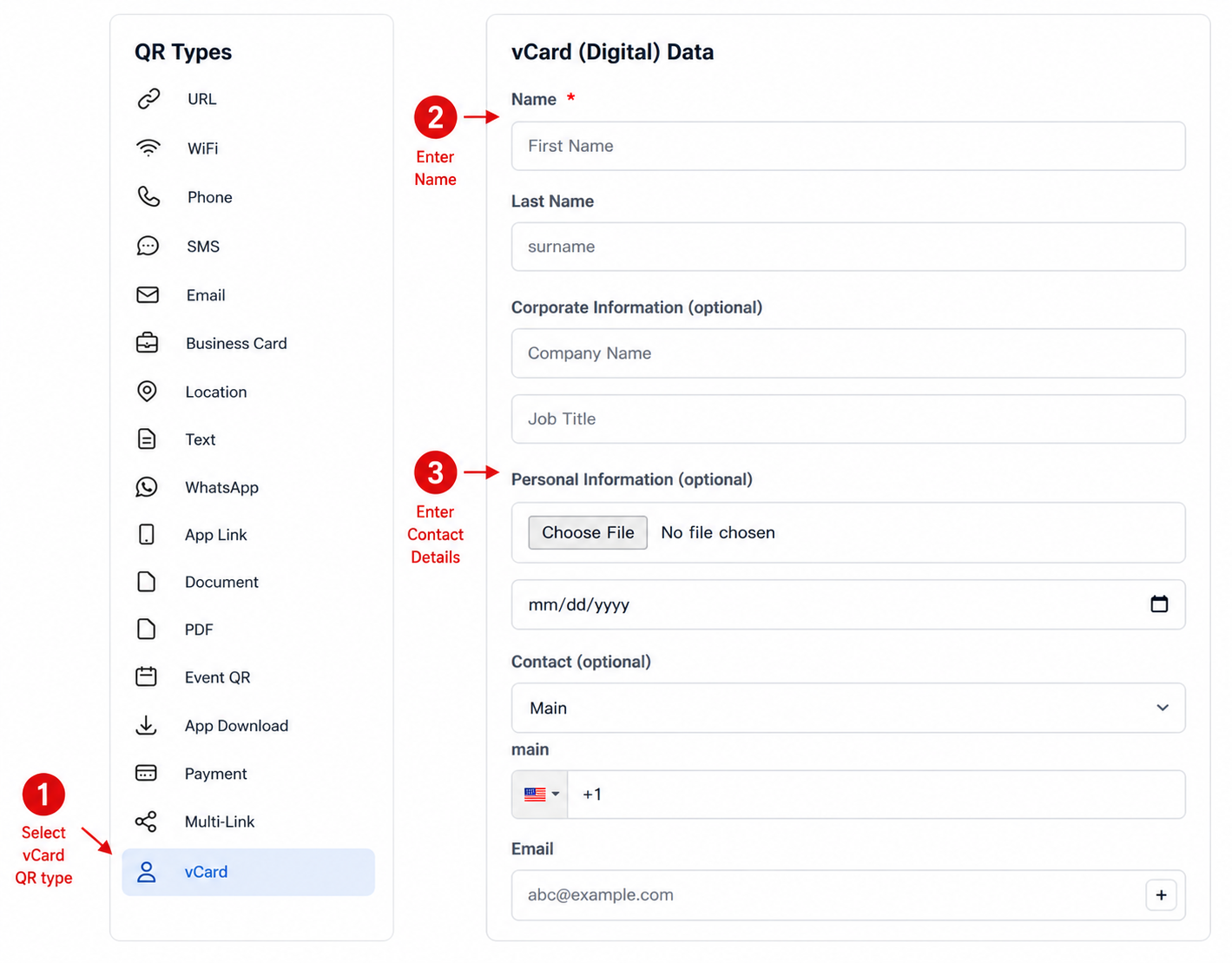
Step 1: Select the vCard QR Code Type
Begin by selecting vCard from the list of available QR code types. This opens the vCard (Digital) Data section where you can input your personal and professional contact information.
Fill in the required and optional fields:
- Name - Enter your First Name and Last Name.
- Corporate Information (optional) - Provide your Company Name and Job Title.
- Personal Information (optional) - Upload a profile photo or select a date of birth.
- Contact (optional) - Add your phone number (with country code) and Email address.
Step 2: Customize Your vCard QR Code
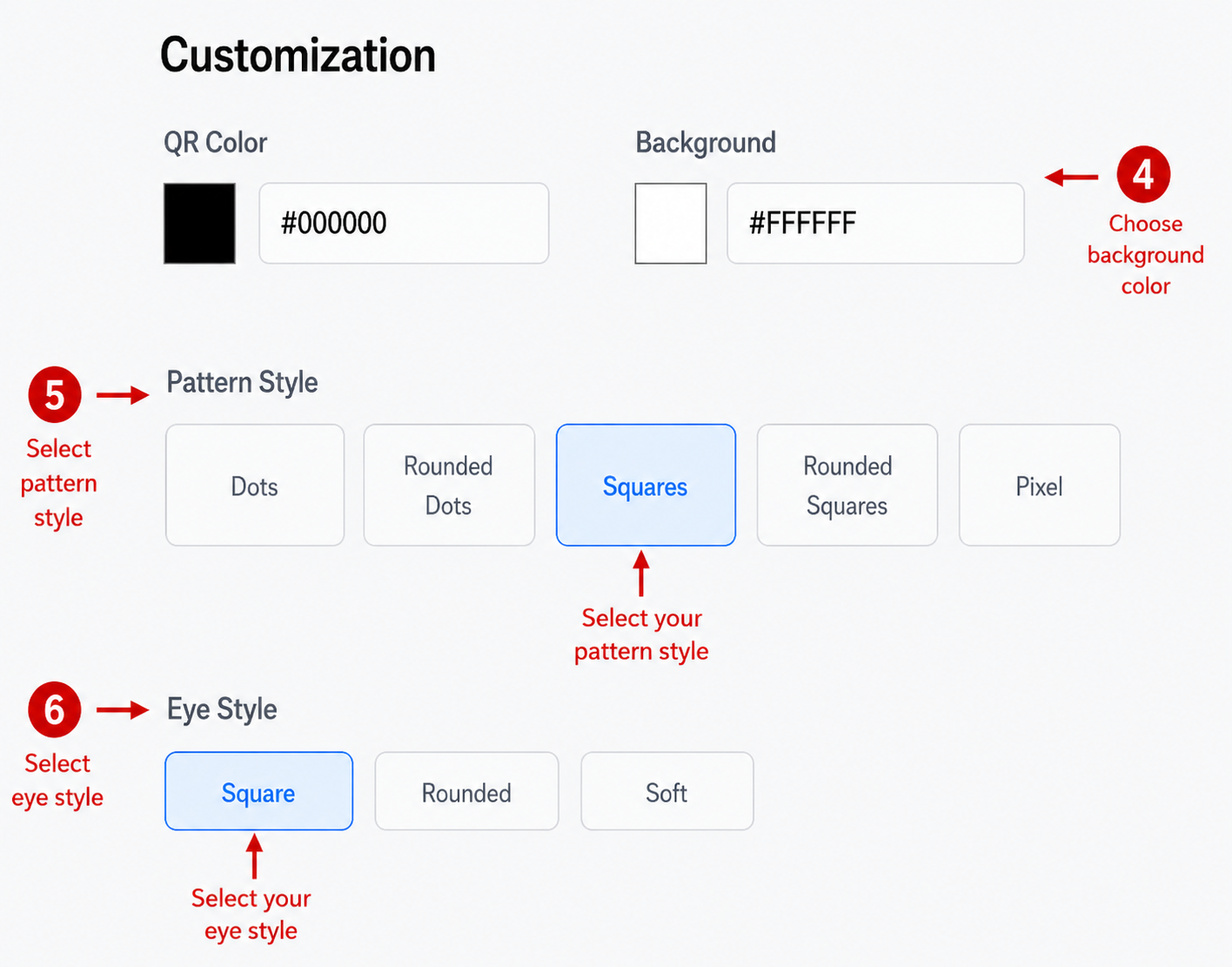
After entering your contact information, personalize the design of your QR Code to align with your personal brand or corporate identity.
The available customization options include:
- QR Color - Choose the primary color of your QR Code using the color picker or by entering a hexadecimal color code.
- Background Color - Select a background color that provides high contrast for seamless scanning.
- Pattern Style - Choose your preferred QR pattern design from:
- Dots
- Rounded Dots
- Squares
- Rounded Squares
- Pixel
- Eye Style - Choose the corner marker style:
- Square
- Rounded
- Soft
Step 3: Upload a Logo (Optional)
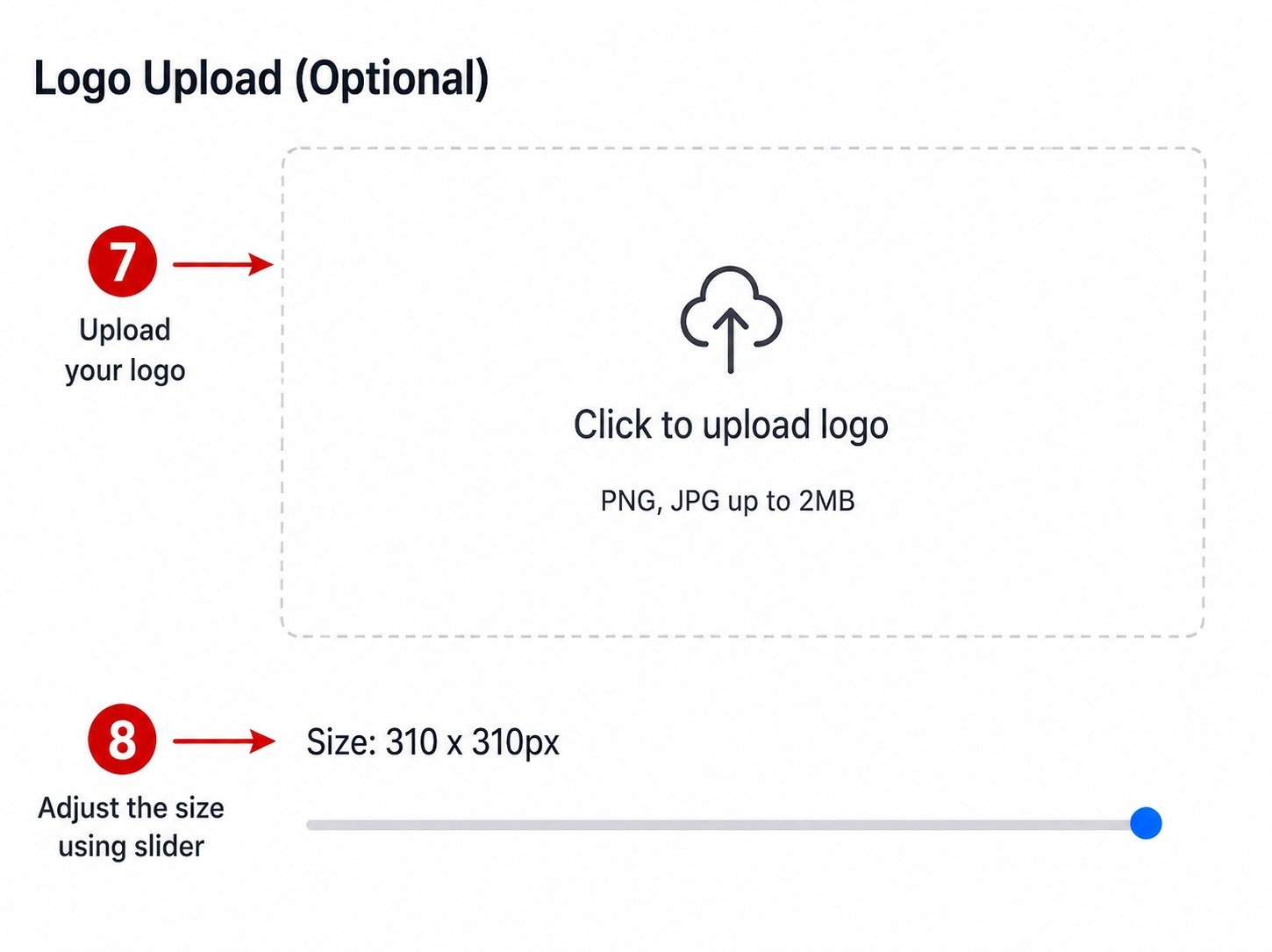
To make your vCard QR Code instantly recognizable, you can add your company logo or a personal icon.
The logo upload tool accepts PNG and JPG image formats up to a maximum file size of 2 MB. After uploading your image, use the size slider to adjust the logo dimensions so it fits neatly within the center of the QR code without hindering readability.
Step 4: Preview and Download Your vCard QR Code
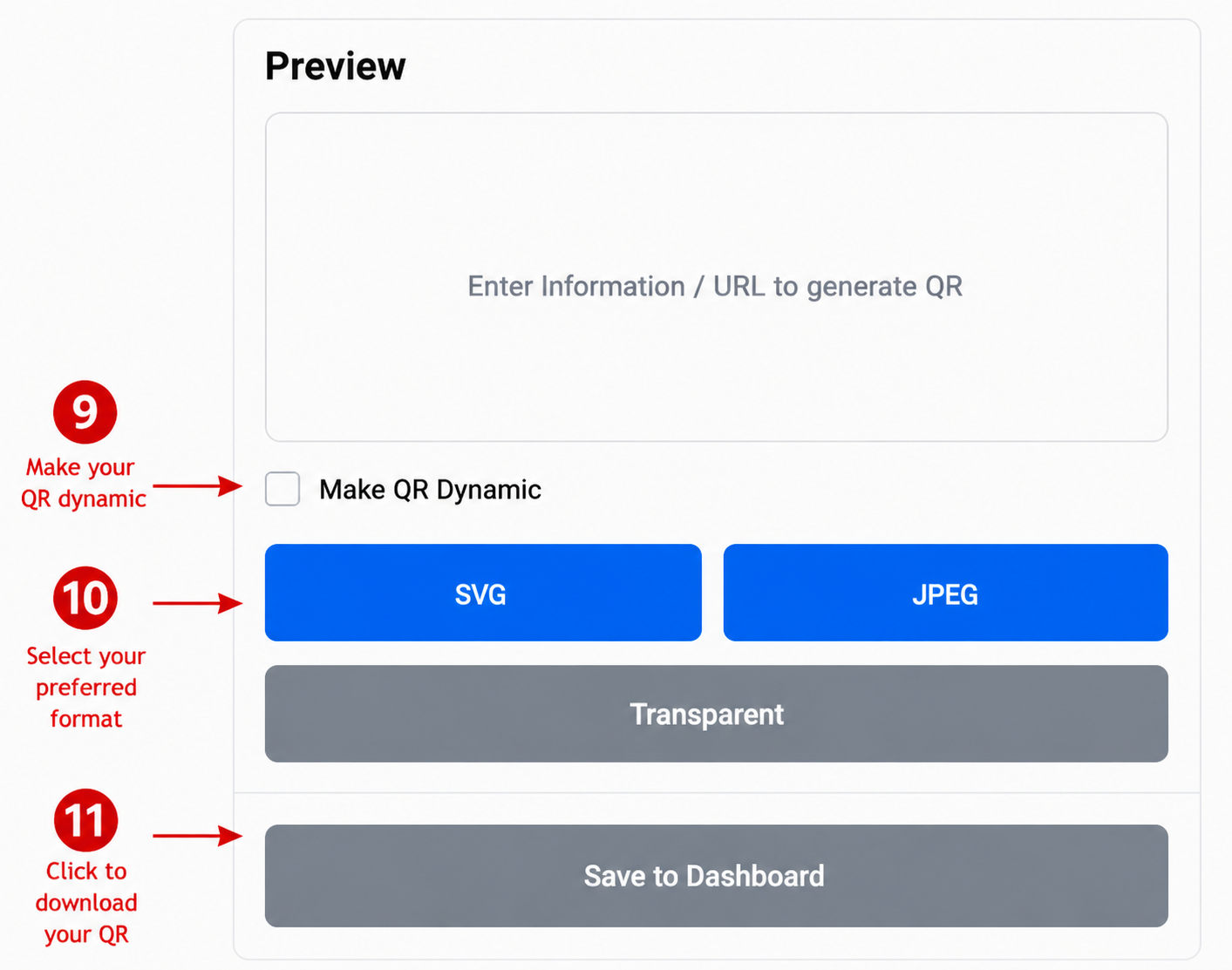
Before finalizing, check your QR Code in the Preview section to confirm all styling and content choices.
If you wish to update your contact details in the future without changing the physical QR Code design, check the Make QR Dynamic option.
Select your preferred export file format:
- SVG
- JPEG
- Transparent
Finally, click Save to Dashboard to store your vCard QR Code and download it for printing or digital use.
Conclusion
You have successfully learned How to Create a vCard QR Code using QR DM. Before distributing it, test the QR Code with a smartphone camera to ensure all your contact fields populate accurately. Once verified, you can place your vCard QR Code on digital business cards, email signatures, physical networking cards, promotional flyers, or presentation slides to make connecting fast and effortless.