How to Create a URL QR Code
Creating a URL QR Code is one of the easiest ways to direct people to a website without asking them to type a web address manually. By simply scanning the QR code with a smartphone, users can instantly open your website, landing page, online store, portfolio, or any other web page. This makes URL QR Codes ideal for business cards, product packaging, flyers, posters, menus, and digital marketing campaigns.
With QR DM, you can create a professional-looking URL QR Code in just a few simple steps. You can also customize its appearance by changing colors, styles, and adding your logo to match your brand. Follow this guide to learn How to Create a URL QR Code quickly and easily.
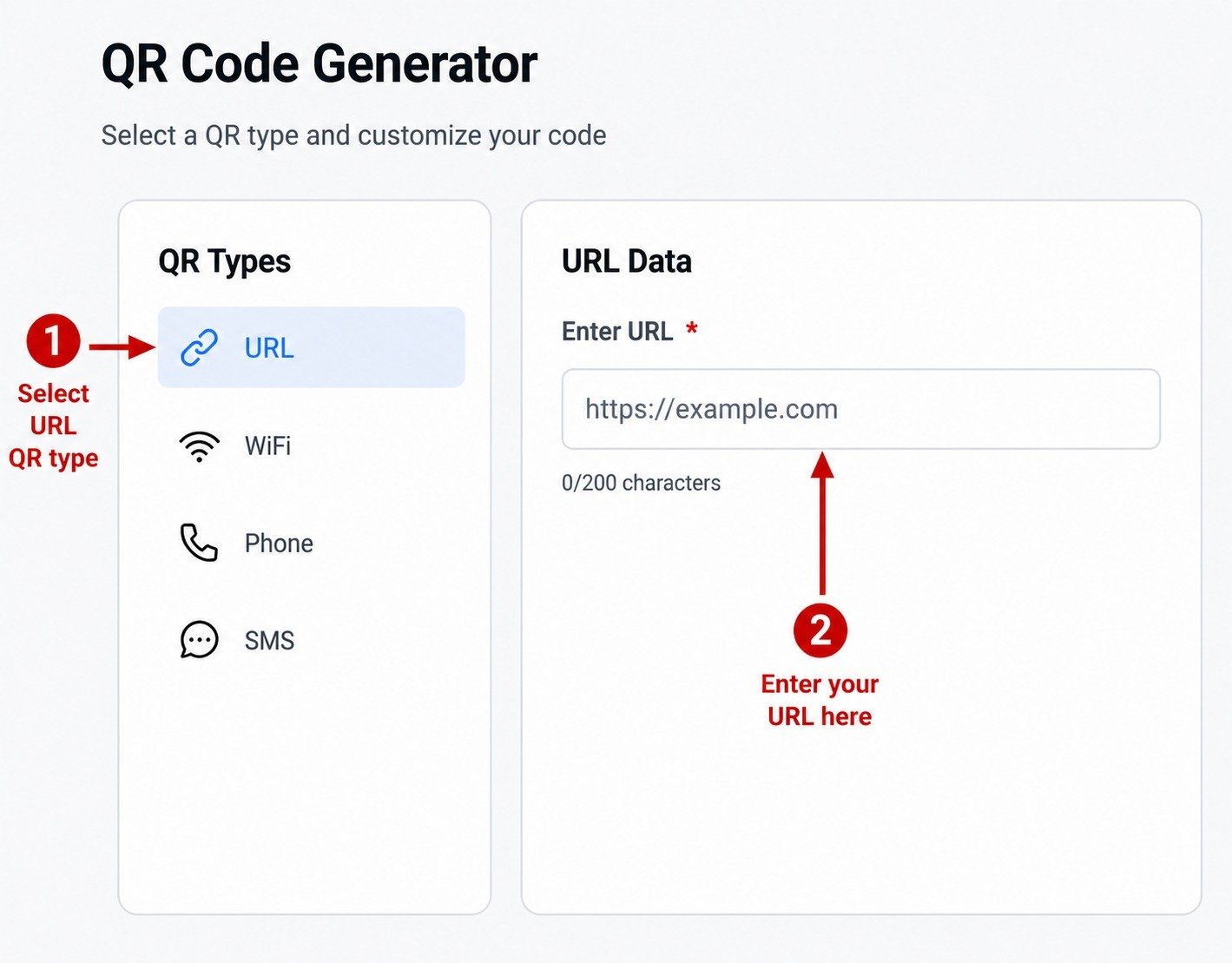
Step 1: Select the URL QR Code Type
Begin by choosing the URL from the list of available QR code types. This option is designed specifically for sharing website links.
Next, enter the complete website address into the Enter URL field. Double-check that your URL is correct before moving to the next step, as this is the destination users will visit after scanning the QR code.
Step 2: Customize Your QR Code
Once your website URL has been entered, you can personalize the appearance of your QR Code.
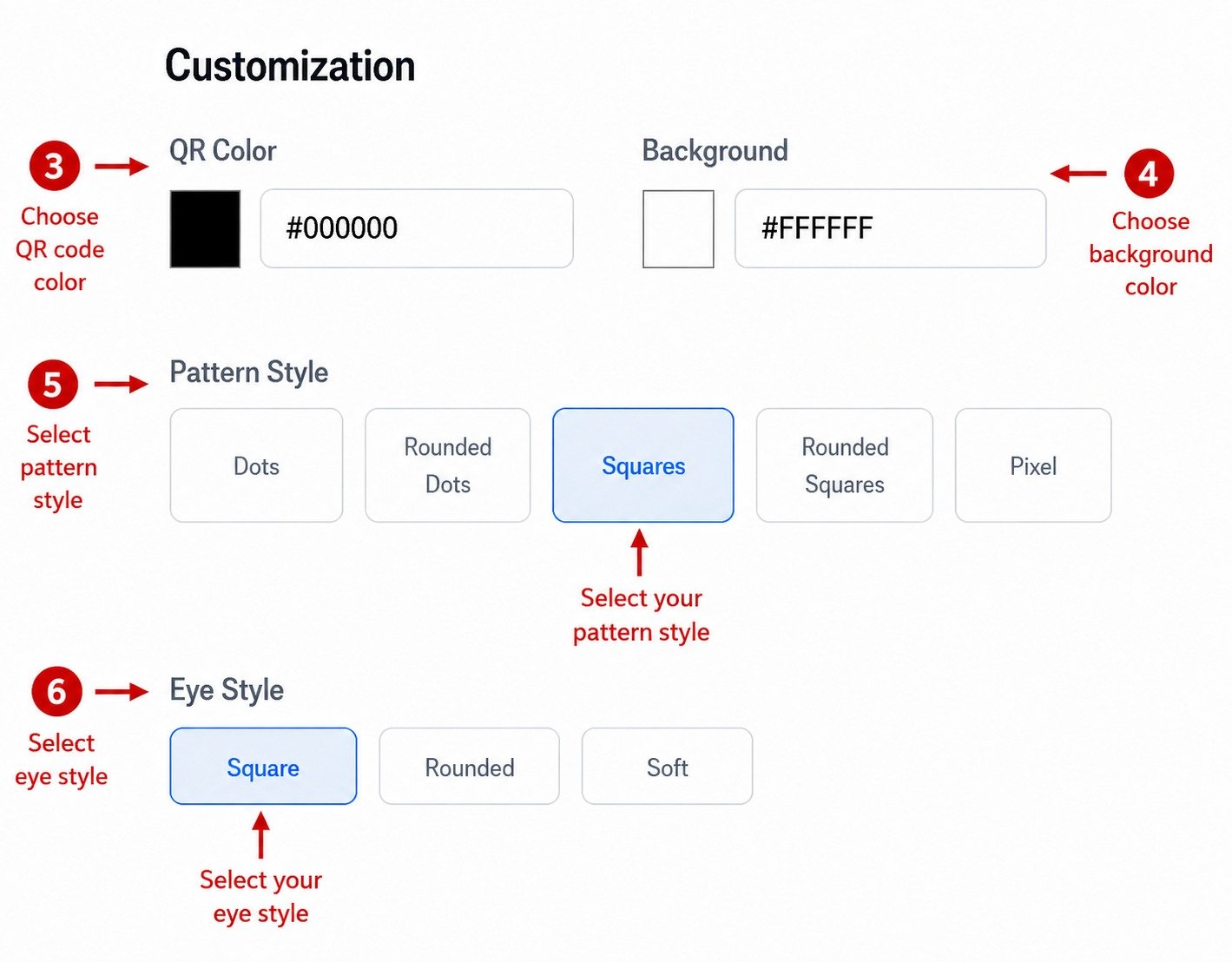
You can customize the following options:
- QR Color - Choose the color of your QR Code using the color picker or by entering a color code.
- Background Color - Select the background color that best suits your design.
- Pattern Style - Pick your preferred QR pattern from the available styles:
- Dots
- Rounded Dots
- Squares
- Rounded Squares
- Pixel
- Eye Style - Select the design of the QR Code corner markers:
- Square
- Rounded
- Soft
These customization options help create a QR Code that matches your branding while maintaining a clean and professional appearance.
Step 3: Upload a Logo (Optional)
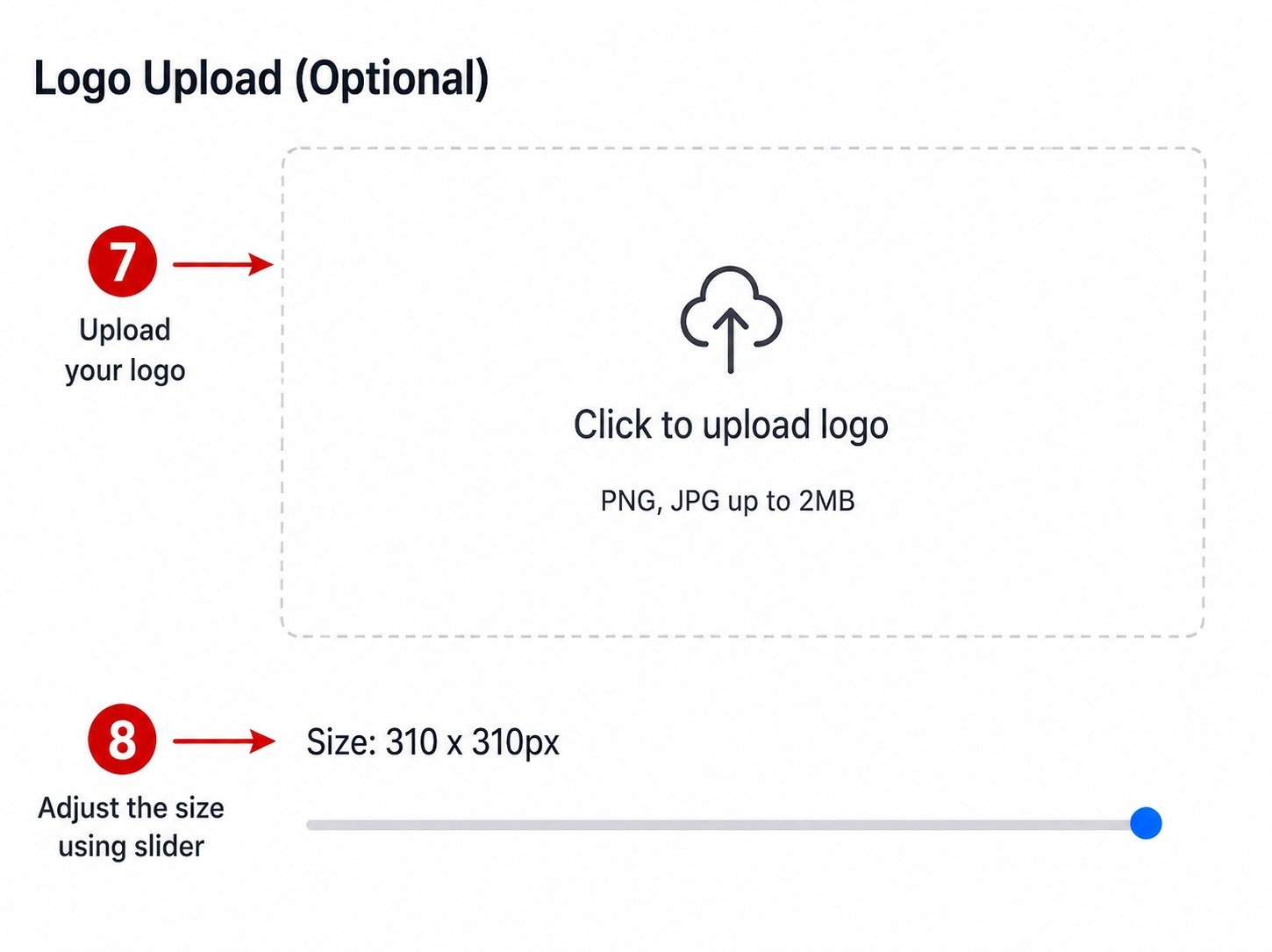
If you'd like to add your brand identity, you can upload a logo to the center of your QR Code.
The logo upload section accepts PNG and JPG files with a maximum size of 2 MB. After uploading, use the size slider to adjust how large the logo appears inside the QR Code until you're satisfied with its placement.
Step 4: Preview and Download Your QR Code
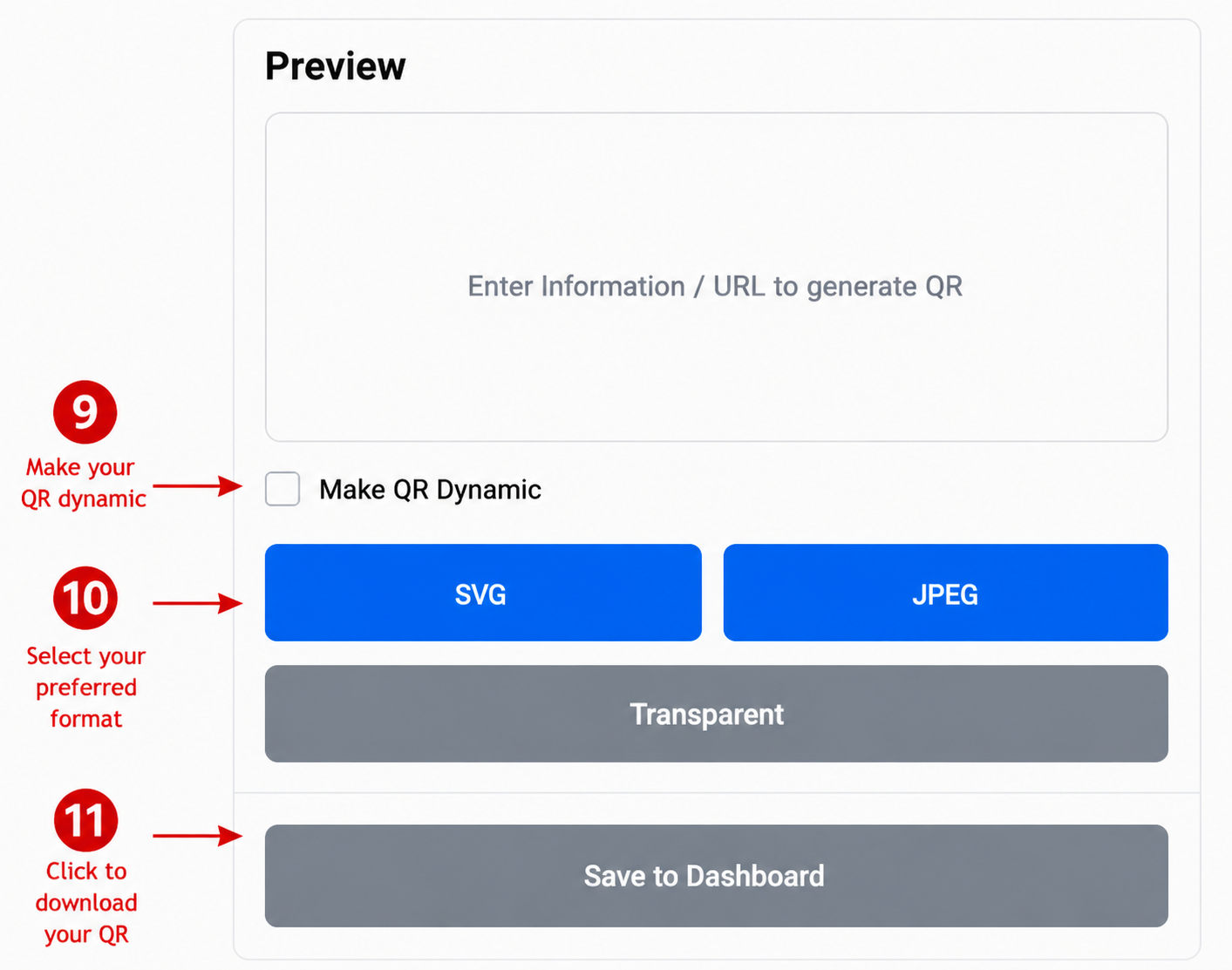
Before saving your QR Code, review it in the preview section to make sure everything looks correct.
You also have the option to enable Make QR Dynamic if you want to create a dynamic QR Code.
When you're ready, choose your preferred download format:
- SVG
- JPEG
- Transparent
Finally, click Save to Dashboard to save your QR Code for future access.
Conclusion
You have successfully learned How to Create a URL QR Code using QR DM. Before sharing your QR Code, take a moment to scan it with your smartphone to confirm that it opens the correct website. Once you've verified that everything works as expected, you can confidently use your QR Code across print materials, marketing campaigns, packaging, business cards, and digital platforms.