How to Create a Multi-Link QR Code
A Multi-Link QR Code allows you to bundle multiple links into a single, scannable QR code. Instead of directing users to just one webpage, scanning the code opens a landing page hosting a collection of your destination buttons (such as social profiles, websites, online stores, or portfolios).
With QR DM, you can customize your landing page details, design your QR code, and download it in your preferred format within minutes. Follow this guide to learn How to Create a Multi-Link QR Code.
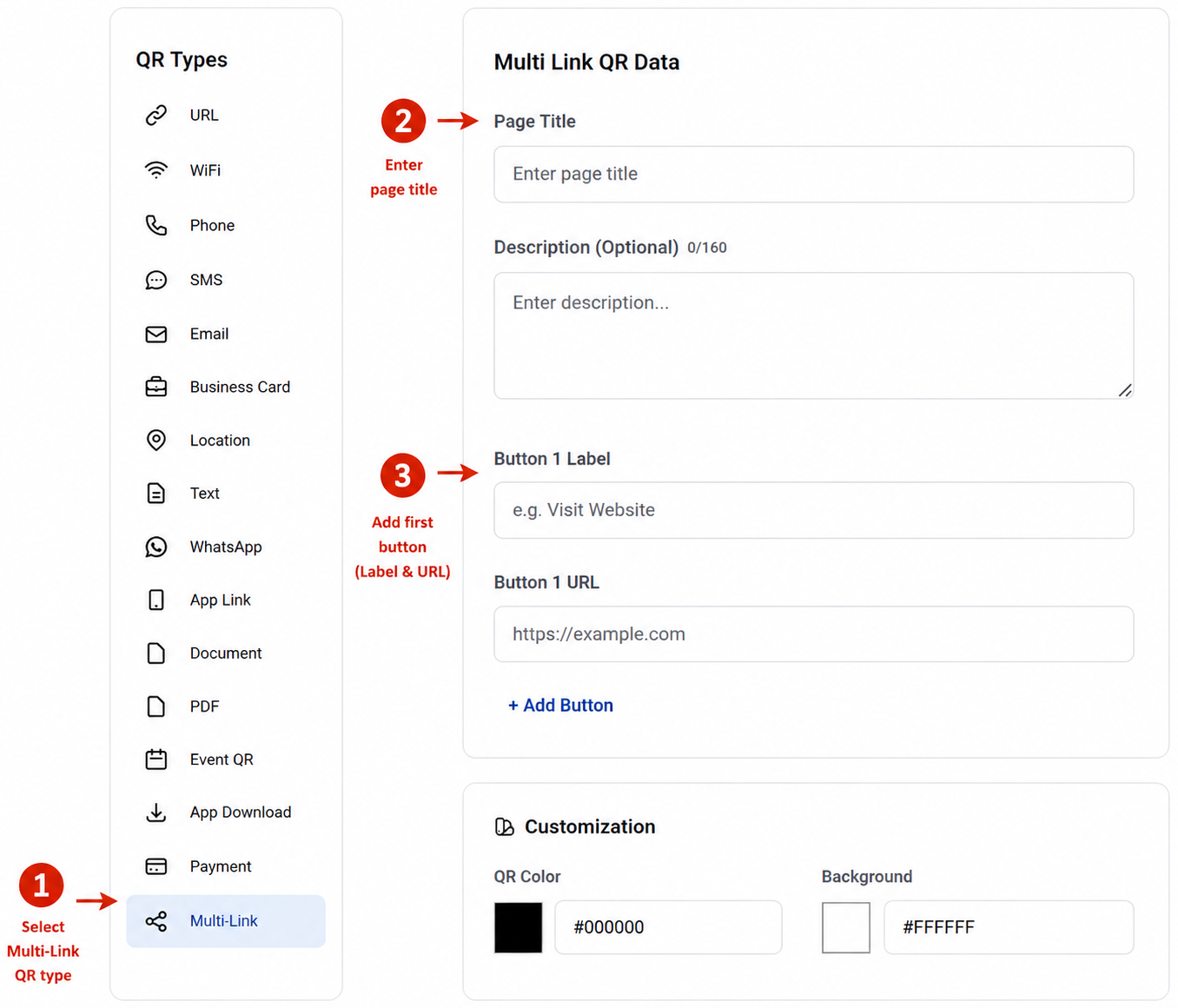
Step 1: Select the Multi-Link QR Code Type
Begin by selecting Multi-Link from the list of available QR code types. This opens the Multi-Link QR Data section where you can configure your landing page.
In the Page Title field, enter the headline for your landing page (e.g., your brand or personal name). Optionally, add a brief summary in the Description (Optional) field (up to 160 characters).
Next, configure your link buttons:
- Button Label - Enter the display text for the button (e.g., Visit Website).
- Button URL - Enter the destination link (e.g., [https://example.com](https://example.com)).
- Click + Add Button to append additional links to your page.
Step 2: Customize Your Multi-Link QR Code
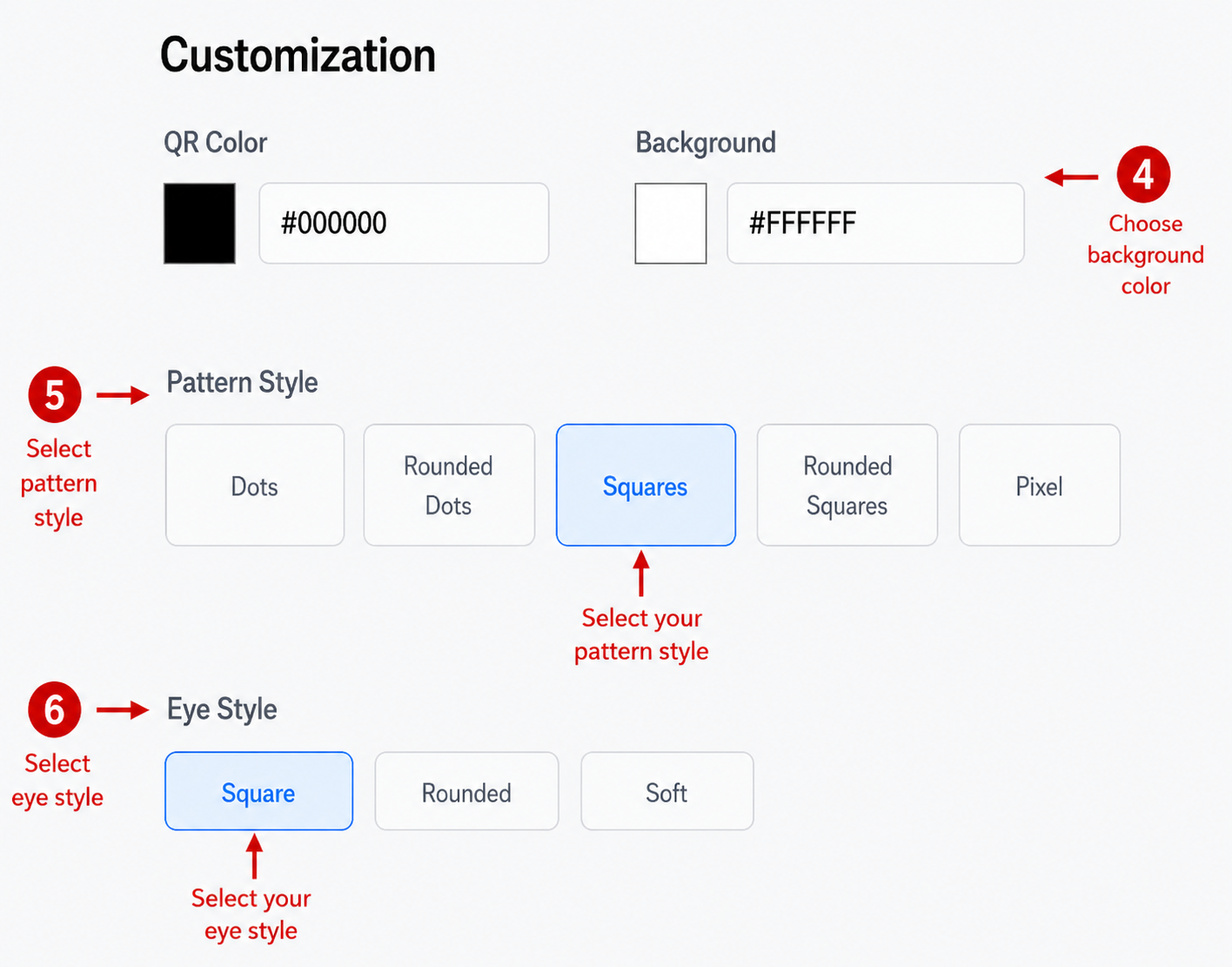
After entering your page details and links, personalize the visual appearance of your QR Code to match your brand styling.
The available customization options include:
- QR Color - Select the color of your QR Code using the color picker or by entering a hexadecimal color code.
- Background Color - Select a high-contrast background color for optimal readability.
- Pattern Style - Select your preferred QR pattern design from:
- Dots
- Rounded Dots
- Squares
- Rounded Squares
- Pixel
- Eye Style - Choose the corner marker style:
- Square
- Rounded
- Soft
Step 3: Upload a Logo (Optional)
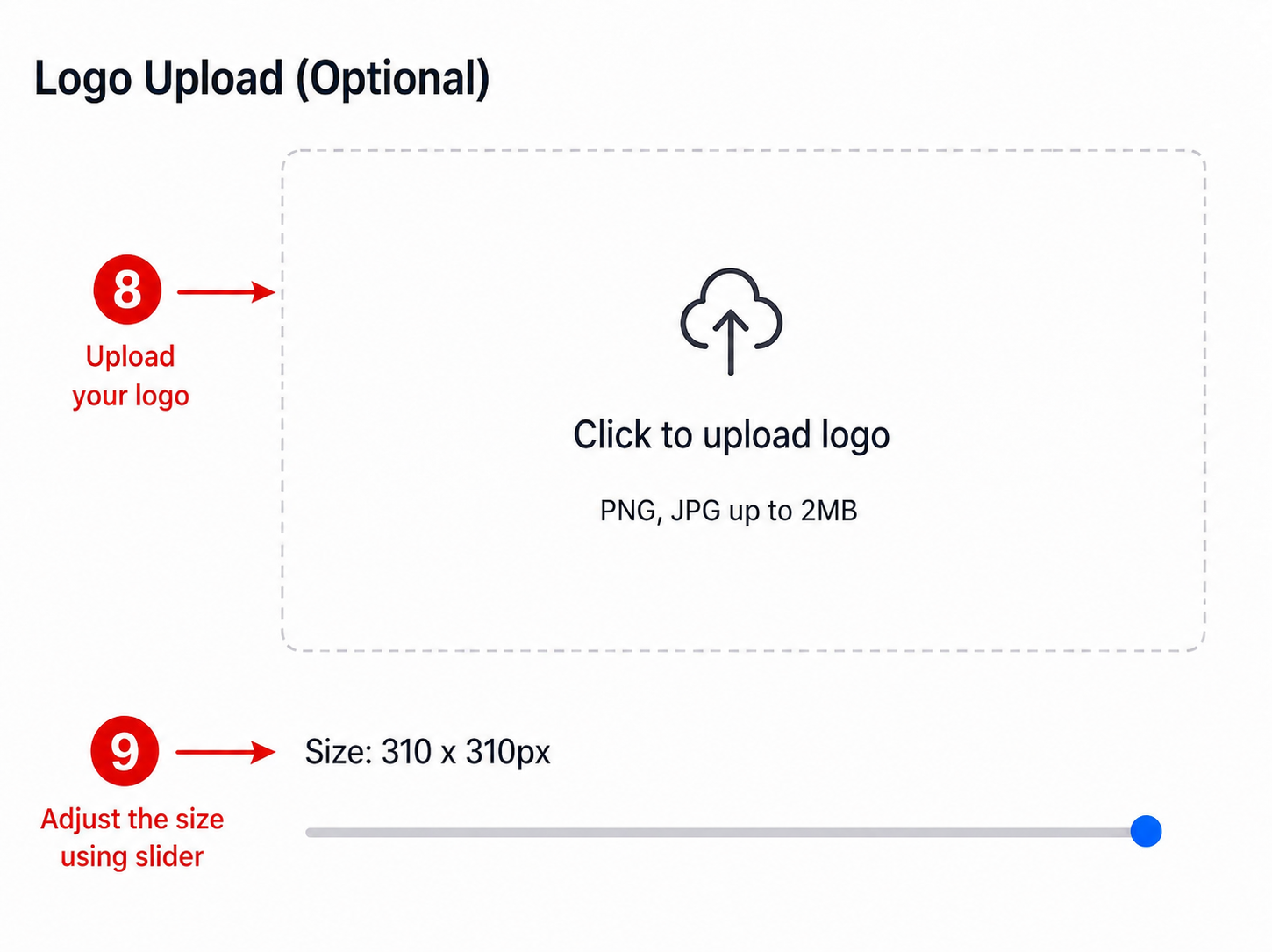
To increase brand recognition and trust, you can add your company or personal logo to the center of the QR code.
The logo upload tool supports PNG and JPG image formats with a maximum file size of 2 MB. Once uploaded, use the size slider to adjust the logo dimensions so it fits cleanly within the QR code without hindering scan performance.
Step 4: Preview and Download Your Multi-Link QR Code
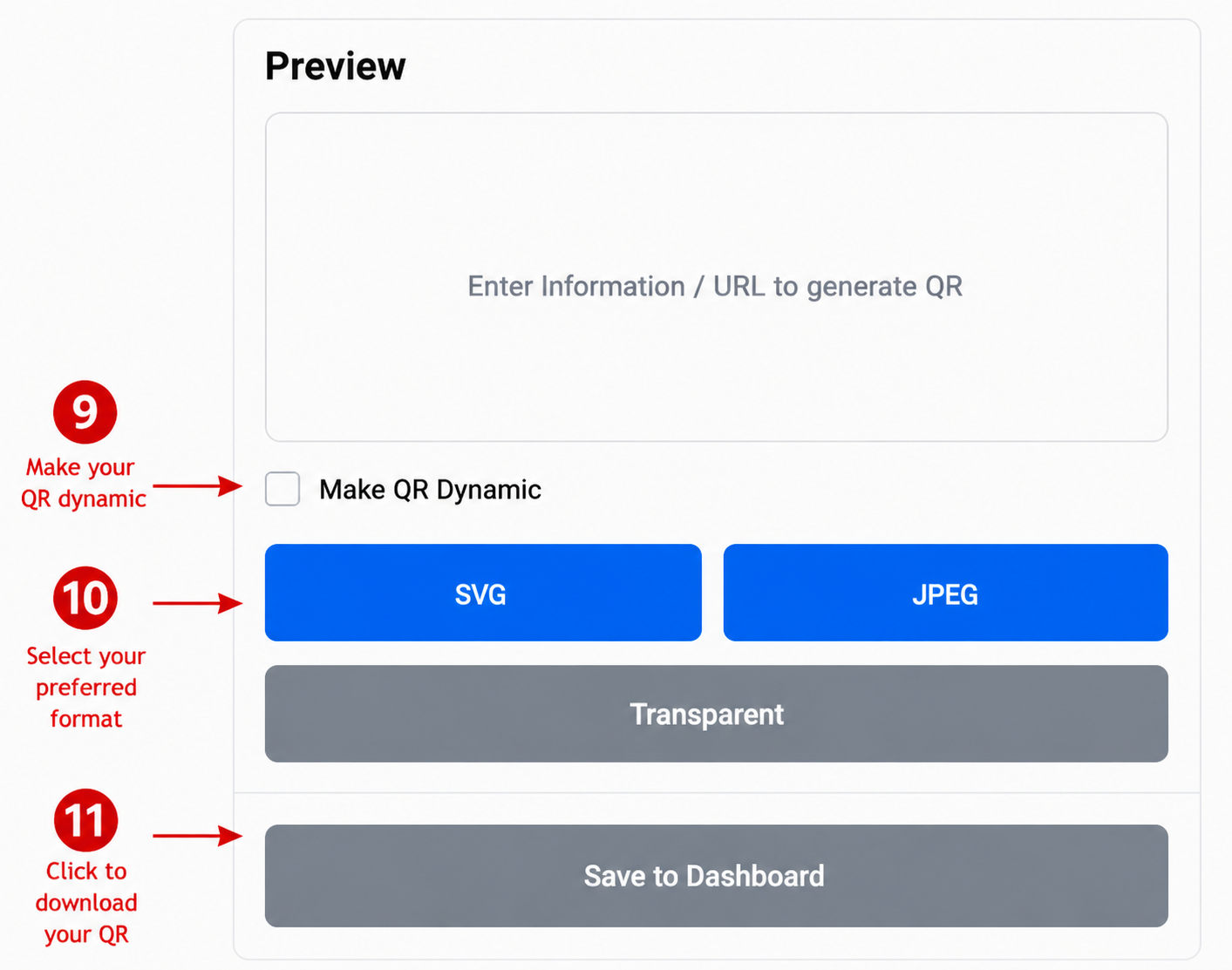
Before downloading, review your QR Code in the Preview panel to ensure all details and designs are correct.
If you want the flexibility to add, edit, or remove links later without reprinting the physical QR Code, enable the Make QR Dynamic option.
Select your desired download format:
- SVG
- JPEG
- Transparent
Finally, click Save to Dashboard to store your Multi-Link QR Code and download it for print or digital distribution.
Conclusion
You have successfully learned How to Create a Multi-Link QR Code using QR DM. Before deploying it across your marketing channels, test the QR Code with a smartphone camera to confirm that the landing page loads all link buttons correctly. Once verified, you can feature your Multi-Link QR Code on social media bios, business cards, flyers, packaging, email signatures, or event displays to connect users to your online content from a single scan.