
How to Create a Business Card QR Code
A Business Card QR Code lets you share your contact information instantly with a simple scan. Instead of manually entering details such as your name, phone number, email address, and company information, users can scan the QR Code to quickly access your digital business card on their smartphone. Business Card QR Codes are ideal for networking events, business cards, email signatures, trade shows, brochures, websites, and marketing materials.
With QR DM, you can create a professional Business Card QR Code in just a few simple steps. Enter your contact information, customize the QR Code to match your brand, and save it for use across both print and digital platforms. Follow this guide to learn How to Create a Business Card QR Code.
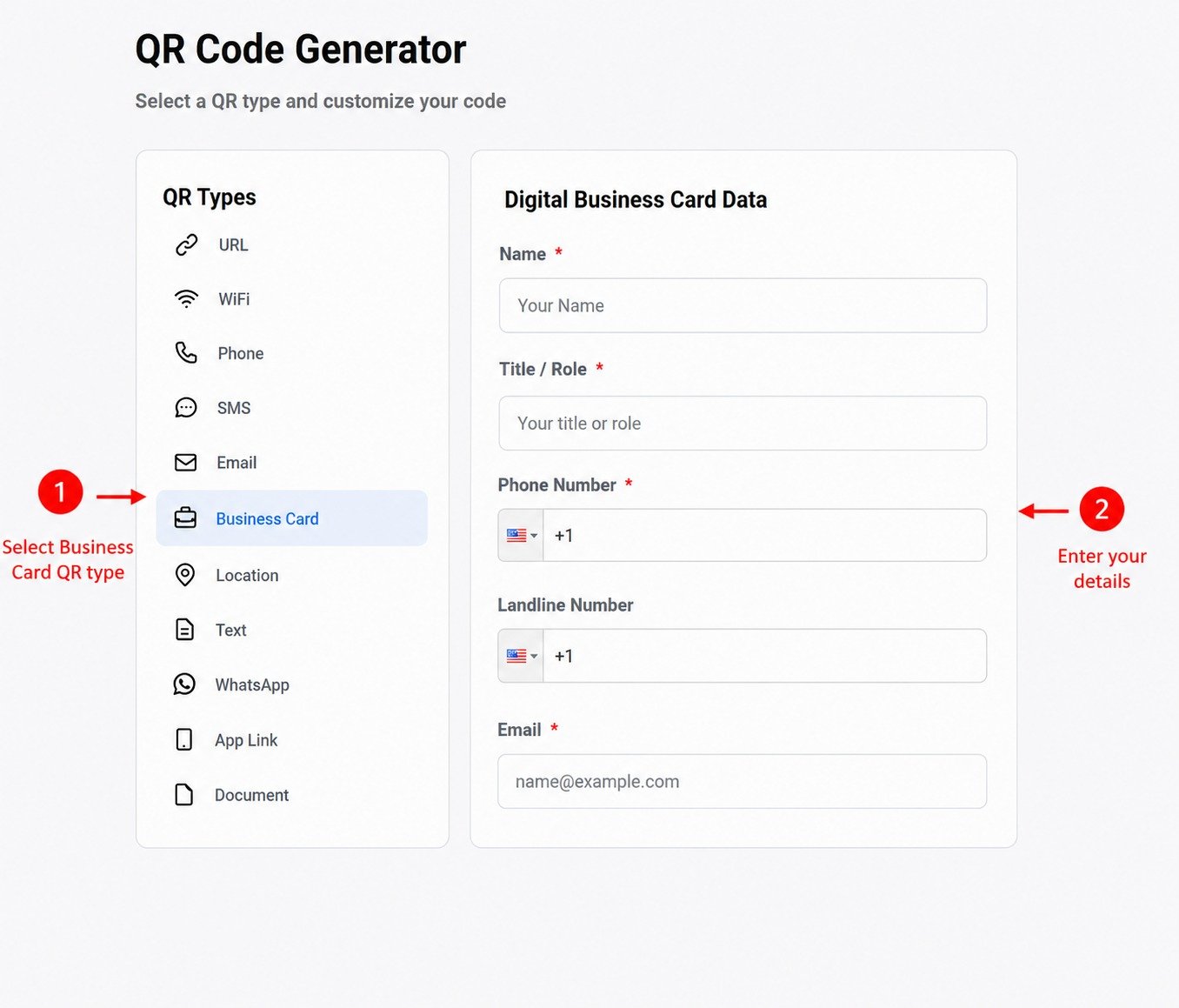
Step 1: Select the Business Card QR Code Type
Begin by selecting Business Card from the list of available QR code types. This opens the digital business card form where you can enter your contact information.
Fill in the required fields, including your Name, Title/Role, Phone Number, Email Address, and any additional information such as your company name, website, address, or social media profiles. Before continuing, review the information to ensure all details are accurate.
Step 2: Customize Your Business Card QR Code
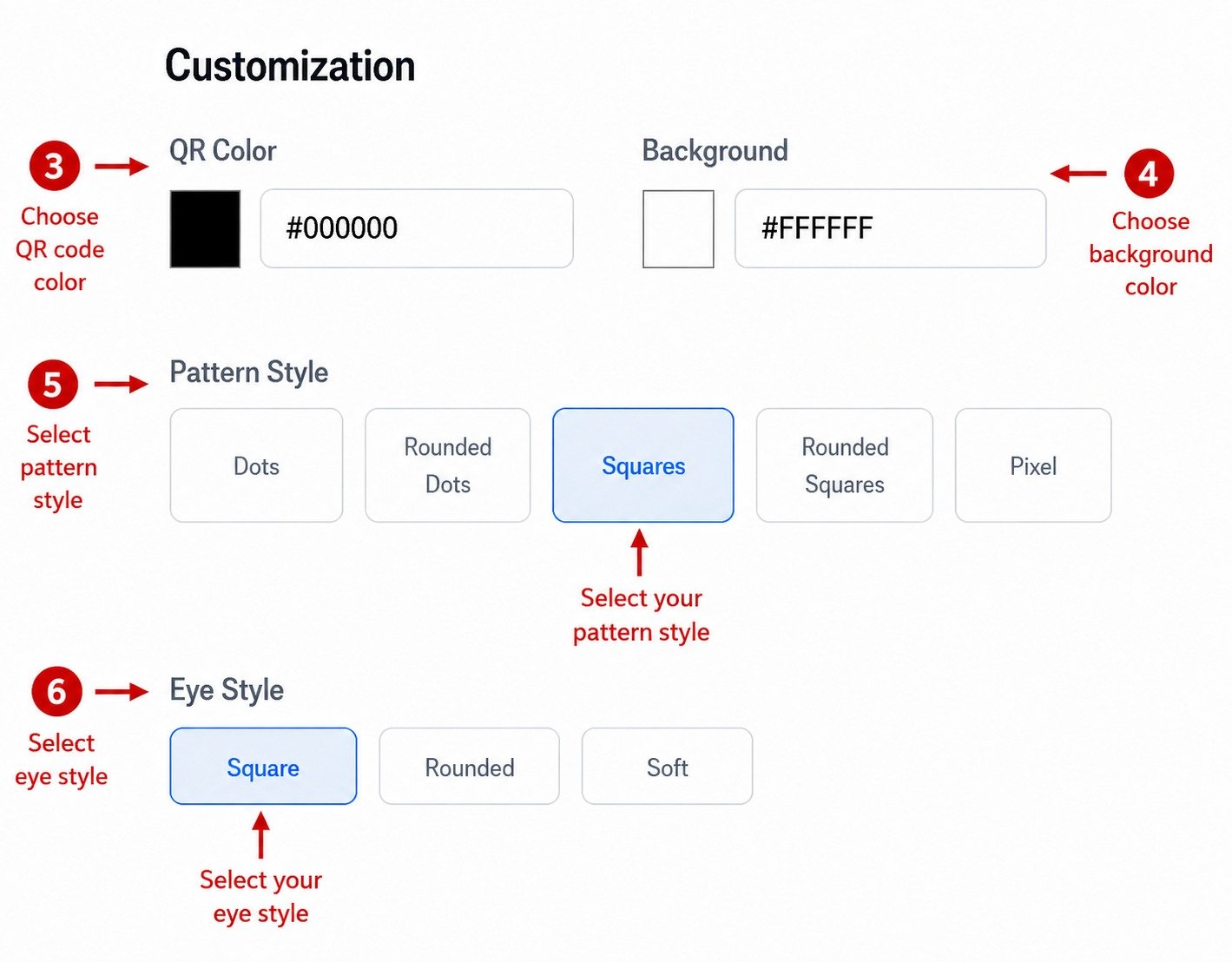
Once you've entered your business card information, you can personalize the appearance of your QR Code.
The available customization options include:
- QR Color - Select the color of your QR Code using the color picker or by entering a color code.
- Background Color - Choose a background color that provides good contrast for easy scanning.
- Pattern Style - Select your preferred design from:
- Dots
- Rounded Dots
- Squares
- Rounded Squares
- Pixel
- Eye Style - Choose the corner marker style:
- Square
- Rounded
- Soft
These customization options allow you to create a Business Card QR Code that matches your personal or company branding while maintaining excellent scanability.
Step 3: Upload a Logo (Optional)
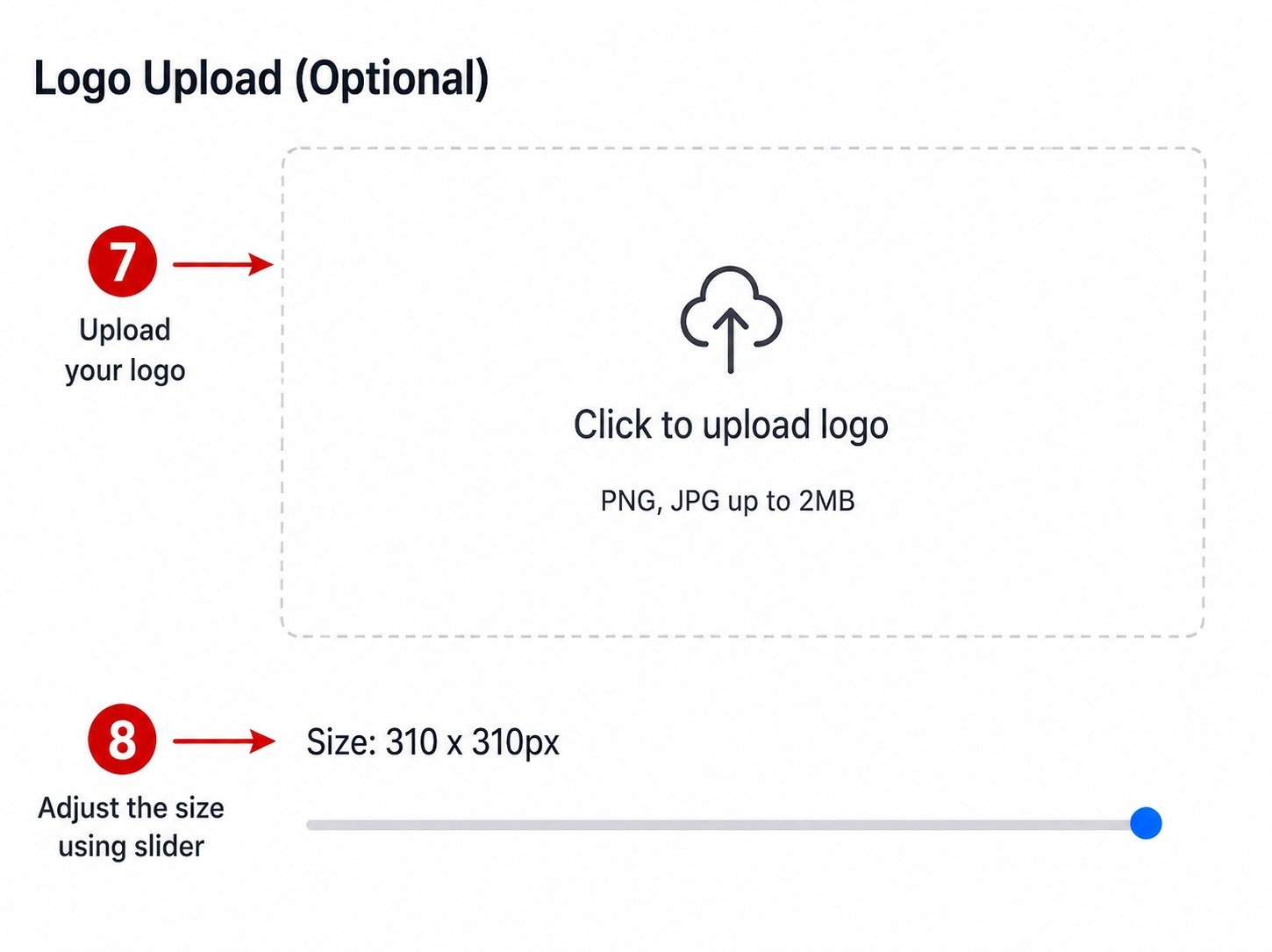
To make your Business Card QR Code more recognizable, you can upload your company or personal logo.
The logo upload area supports PNG and JPG image formats with a maximum file size of 2 MB. After uploading, use the size slider to adjust the logo until it fits neatly within the QR Code.
Step 4: Preview and Save Your Business Card QR Code
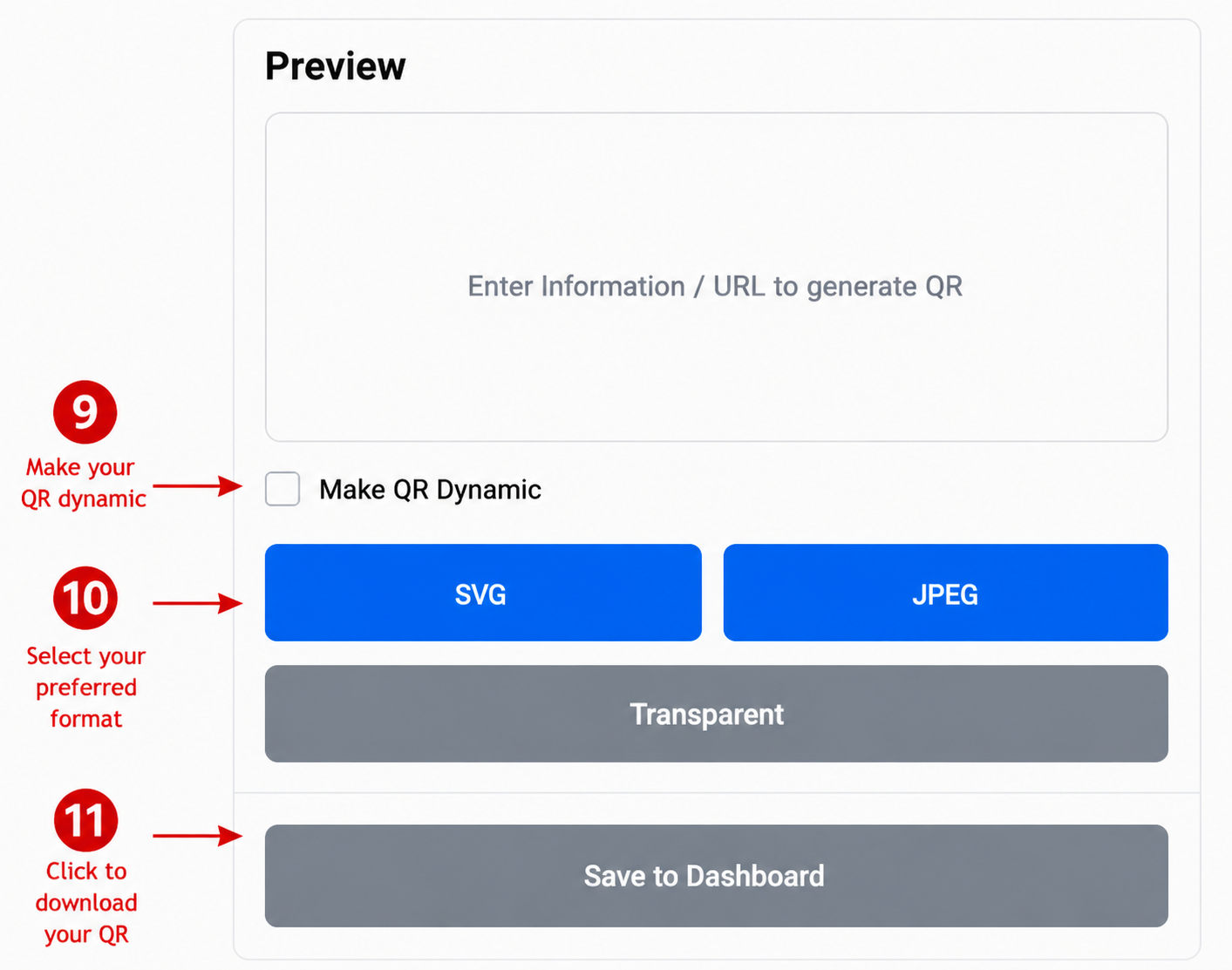
Before saving, review your Business Card QR Code in the preview section to ensure it appears as expected.
If needed, enable the Make QR Dynamic option before saving.
Choose your preferred output format:
- SVG
- JPEG
- Transparent
Finally, click Save to Dashboard to save your Business Card QR Code for future use.
Conclusion
You have successfully learned How to Create a Business Card QR Code using QR DM. Before sharing your QR Code, scan it with a smartphone to verify that your contact information displays correctly. Once confirmed, you can confidently use your Business Card QR Code on business cards, email signatures, websites, presentations, brochures, and other marketing materials, making it easy for clients, customers, and business partners to save your contact information instantly.