How to Create an App Link QR Code
An App Link QR Code allows users to instantly open or download your mobile application by simply scanning a QR code. Instead of manually searching for your app or typing a long URL, users are taken directly to the application link, making the installation process faster and more convenient.
App Link QR Codes are ideal for app promotions, marketing campaigns, product packaging, websites, posters, brochures, business cards, and social media. With QR DM, you can create a professional App Link QR Code in just a few simple steps. Enter your application URL, customize the QR Code to match your branding, and download it in your preferred format.
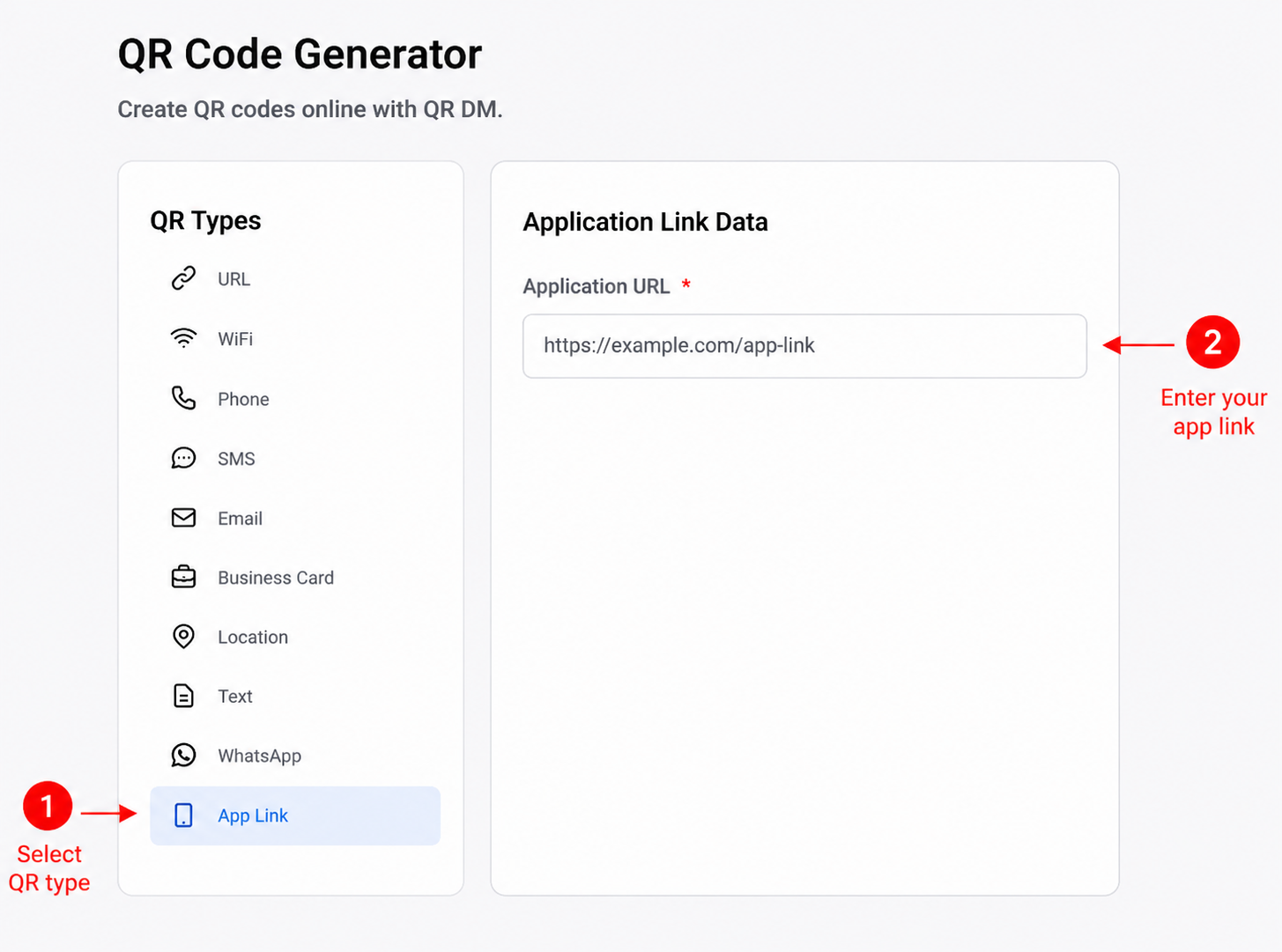
Step 1: Select the App Link QR Code Type
Begin by selecting App Link from the list of available QR code types. This opens the Application Link Data section where you can enter the URL for your mobile application.
Paste your complete app URL into the Application URL field. This can be a link to your app on the Apple App Store, Google Play Store, or any other valid application landing page.
Before continuing, verify that the URL is correct so users are directed to the intended destination.
Step 2: Customize Your App Link QR Code
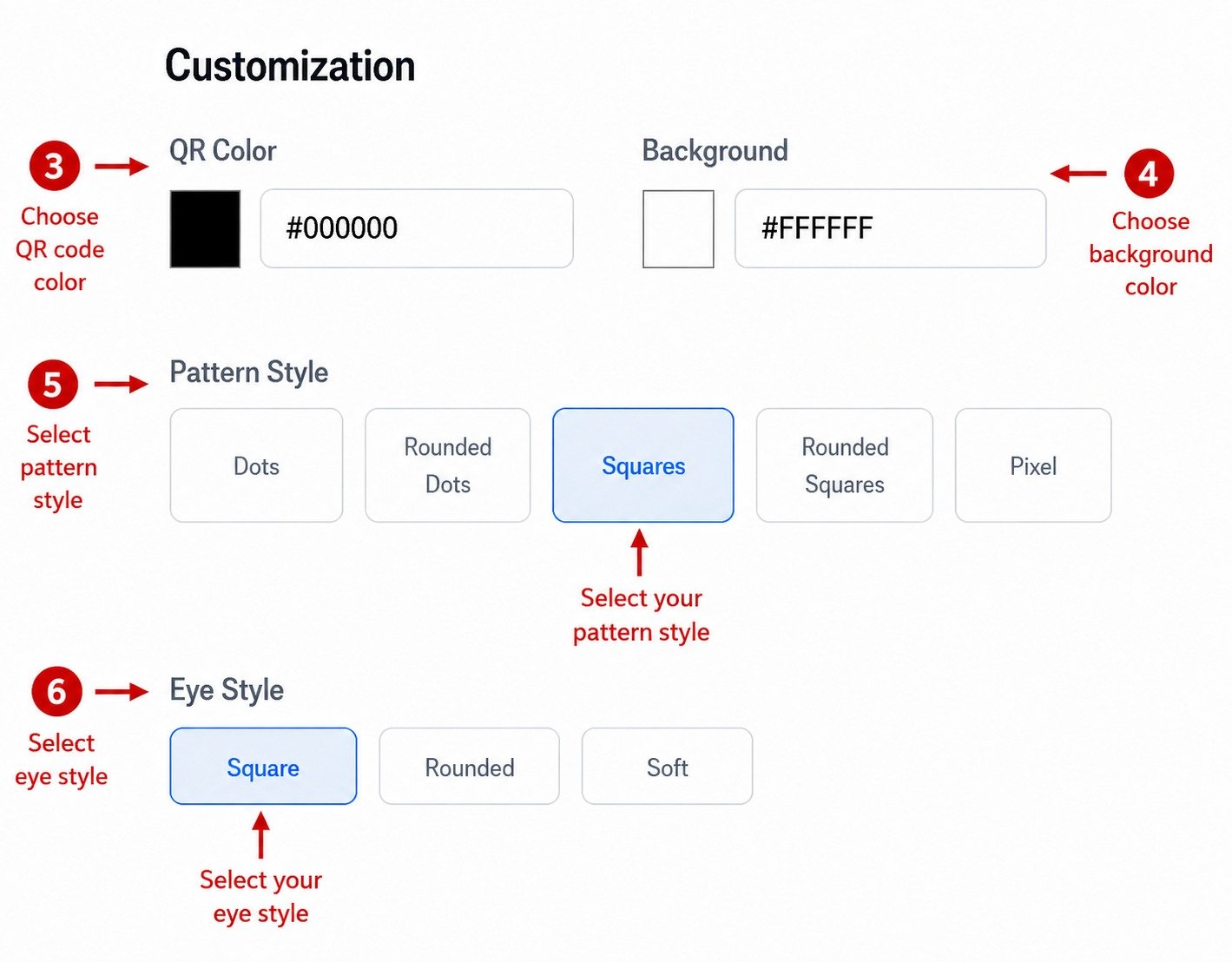
Once you've entered your application URL, you can personalize the appearance of your QR Code.
The available customization options include:
- QR Color - Select the color of your QR Code using the color picker or by entering a HEX color code.
- Background Color - Choose a background color that provides sufficient contrast for reliable scanning.
- Pattern Style - Select your preferred QR pattern:
- Dots
- Rounded Dots
- Squares
- Rounded Squares
- Pixel
- Eye Style - Choose the corner marker style:
- Square
- Rounded
- Soft
These customization options allow you to create a QR Code that matches your brand while maintaining excellent scan performance.
Step 3: Upload a Logo (Optional)
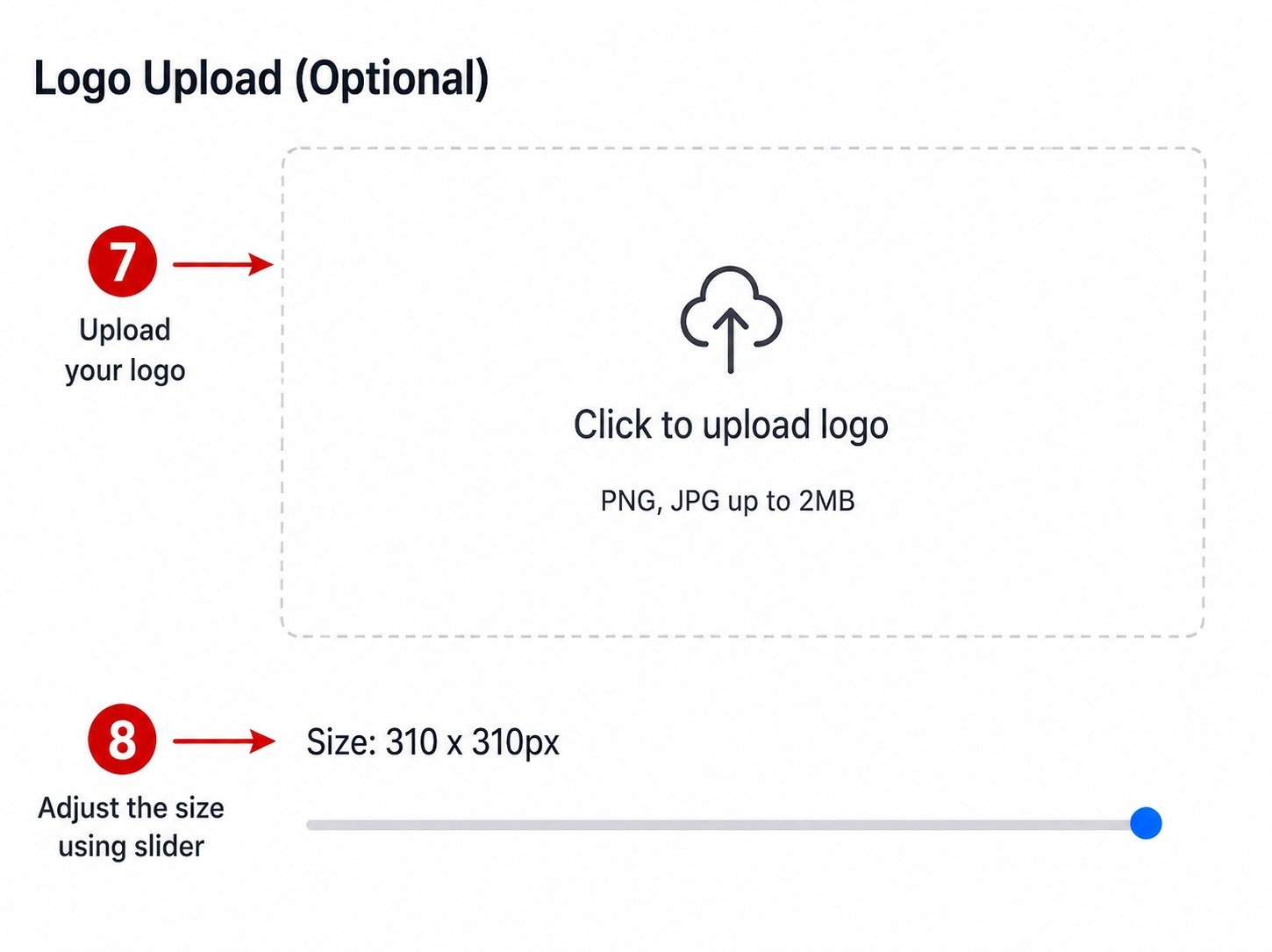
To make your App Link QR Code more recognizable, you can add your company or app logo.
The logo upload area supports PNG and JPG image formats with a maximum file size of 2 MB. After uploading, use the size slider to adjust the logo until it fits neatly within the QR Code without affecting readability.
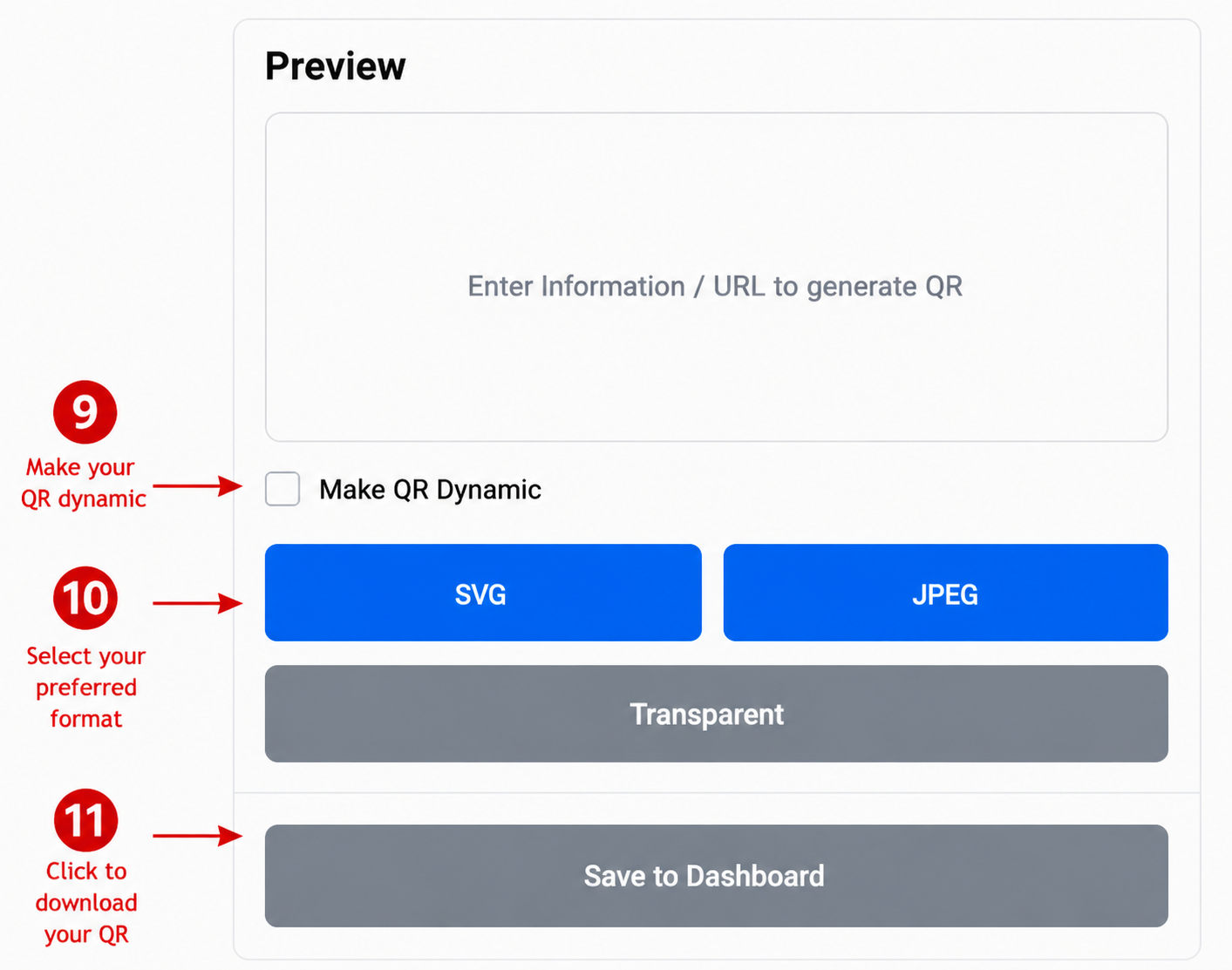
Step 4: Preview and Download Your App Link QR Code
Before downloading, review your App Link QR Code in the preview section to ensure everything looks correct.
If desired, enable the Make QR Dynamic option before saving.
Choose your preferred download format:
- SVG
- JPEG
- Transparent
Finally, click Save to Dashboard to save and download your App Link QR Code for use across print and digital media.
Conclusion
You have successfully learned How to Create an App Link QR Code using QR DM. Before sharing your QR Code, scan it with a smartphone to confirm that it opens the correct application page or download link. Once verified, you can confidently use your App Link QR Code on advertisements, websites, brochures, packaging, business cards, and other promotional materials to help users access your app quickly and effortlessly.