10 QR Code Mistakes to Avoid in 2026
You print 500 flyers, hand them out, and then a customer tells you, “I scanned it, but nothing happened.” It’s a small moment that costs real money, and the cause is usually one of a few QR code mistakes that take minutes to fix. Most of them come down to color, size, file format, or a skipped test scan. This guide covers the 10 mistakes that cause the most scanning trouble, explains why each one breaks a scan, and shows you how to fix it. You’ll also get a pre-print checklist and a pro tip you can use today.
What Are the Most Common QR Code Mistakes?
The most common QR code mistakes are low color contrast, printing the code too small, using a static code for content that will change, skipping a test scan, and linking to a page that loads badly on phones. Fix these five first and you avoid most scanning problems.
If you’re not sure which problem you have, start with the table below. For a broader troubleshooting list, see these reasons a QR code fails.
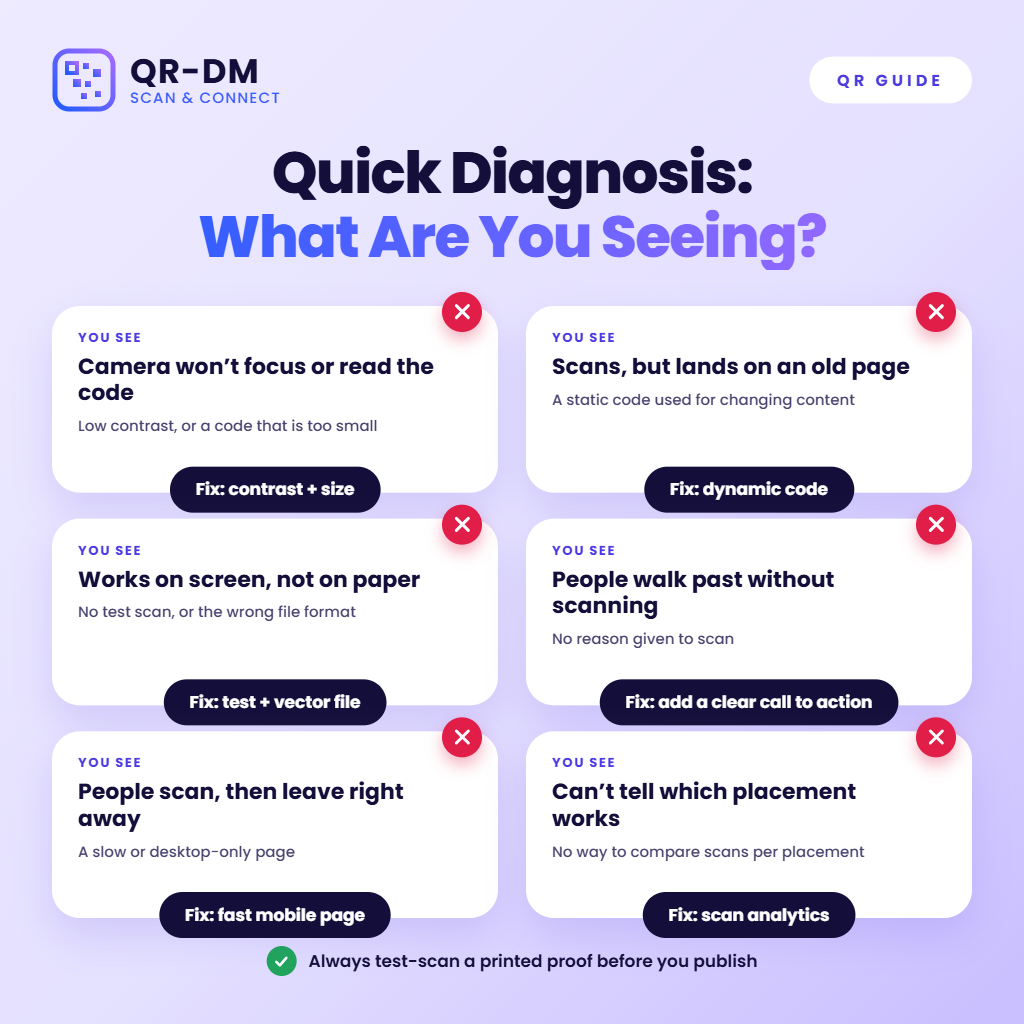
The 10 QR Code Mistakes and How to Fix Each One
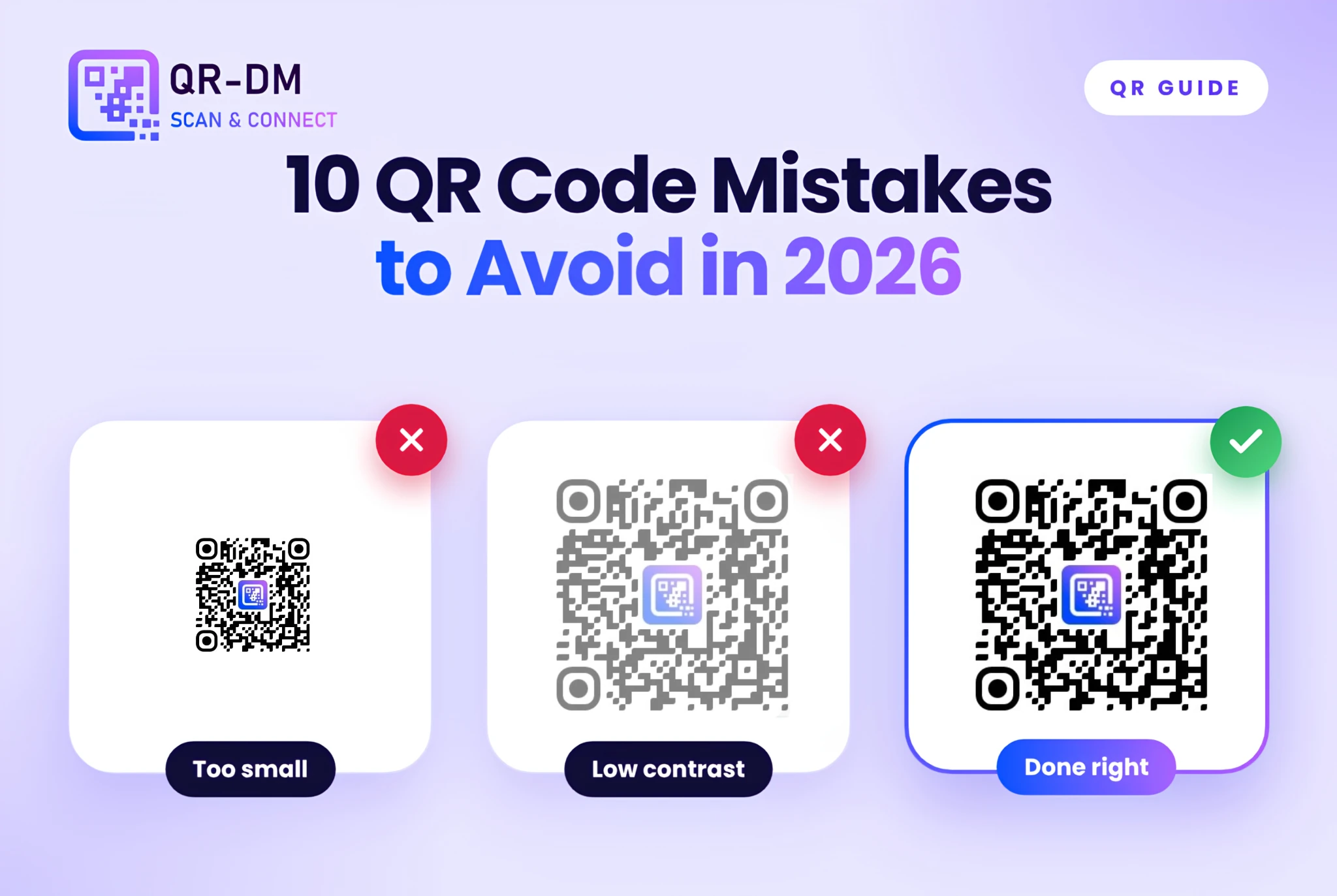
Mistake 1: Using low contrast or inverted colors
A phone camera has to tell dark squares from light ones. Pale grey on white, or yellow on cream, makes that hard. Light-on-dark “inverted” codes also fail on some scanners, because many expect dark modules on a light background.
Imagine a café owner who prints a menu QR code in light grey to match the brand. In a dim room, customers can’t scan it. Switching to near-black on white fixes it at once.
Fix: Keep a dark foreground and a light background. QR-DM’s own best practice is strong contrast. You can still use brand colors, as long as the dark and light values stay far apart.
Mistake 2: Printing the code too small
Small codes pack their squares so tightly that a camera can’t separate them, especially from a distance. A common rule of thumb is that the code’s width should be about one-tenth of the scanning distance. A code on a table card can be small. A code on a shop window must be much bigger.
Fix: Decide the scan distance first, then size the code. Leave a blank border (the “quiet zone”) so nearby text or images don’t confuse the camera.
[IMAGE]
Mistake 3: Choosing a static code for something that will change
A static QR code stores its content directly in the pattern. It never expires, but you can’t edit it after creation. If your menu, promo page, or event page moves, every printed copy still points to the old place.
A dynamic QR code points to a short redirect URL instead, so you can change the destination without reprinting. It also gives scan analytics, and the shorter encoded URL makes the pattern less dense, so it scans faster. Dynamic codes stay active while your plan is active. Read the difference between static and dynamic codes before you print anything.
Fix: Use static for things that never change, like WiFi details or plain text. Use dynamic for anything on a poster, package, or sign that you can’t easily replace.
Mistake 4: Skipping the test scan
Screens lie. A code that looks perfect on your monitor can fail after printing because of ink spread, glossy paper, or a crumpled sticker.
Fix: Print one proof at the final size. Scan it with the iOS camera and an Android camera app, in normal room light, from the distance real people will use. Popular scanning and payment apps differ by country and city, so test with the apps your audience actually uses. This takes two minutes.
Mistake 5: Over-decorating the code
Custom colors, dot patterns, rounded eye shapes, and a center logo all help a code look on-brand. Too much of it breaks the code. The QR code was created by Denso Wave in 1994 and is defined by the ISO/IEC 18004 standard. It uses error correction at four levels (L, M, Q, and H), which is why a partly damaged code can still scan. A big logo covers part of the pattern and uses up that safety margin.
Fix: Keep the logo small and centered. Use QR-DM’s color and logo options in moderation, and re-test after every design change.
Mistake 6: Giving people no reason to scan
A bare code on a flyer is a puzzle. People don’t scan things when they don’t know what happens next.
Fix: Add one short line beside the code, such as “Scan for the menu” or “Scan to save our contact.” If the code opens a web page, this URL QR code guide helps you choose the right destination.
Mistake 7: Sending people to a slow or broken page
A scan is only the first step. If the page is built for desktop, loads slowly, or asks for a login, people give up. A URL code also needs an internet connection once the link opens. Text and WiFi codes are different, and you can learn how QR codes work without internet.
Fix: Open your destination on a phone before you publish. If the code will hang in a basement, a market stall, or a weak-signal area, pick a content type that doesn’t depend on a connection.
Mistake 8: Exporting the wrong file format
A PNG is raster, which means it’s made of pixels. Enlarge a small PNG for a banner and the edges blur, which makes scanning harder. An SVG is vector, so it scales to any size without losing sharpness.
Fix: Download SVG for anything printed. PNG works for screens and small uses. QR-DM also offers transparent PNG and JPEG.
Mistake 9: Not tracking what happens after printing
If the same code sits on a flyer, a window, and a package, you can’t tell which one works. You’re guessing about your marketing.
Fix: Make a separate dynamic code for each placement, then track your QR code scans to see total scans and performance over time.
Mistake 10: Ignoring safety
A person scanning a code can’t see where it leads before the link opens. Someone can stick another code over yours. Private details in a code can be read by anyone who scans it.
Fix: Check your printed codes now and then for stickers placed over them. Use password protection on supported content types when the content is private. Before opening any scanned link, verify the destination domain. QR-DM does not sell user data, and the QR-DM privacy policy explains more.
Pro tip: Give each placement its own dynamic code and keep a short list of where each one lives. When one performs badly, you’ll know whether the problem is the code, the location, or the message.
Your Pre-Print Checklist
- Dark code on a light background, with high contrast
- Size matched to scan distance, with a clear border around the code
- Static or dynamic chosen on purpose
- A short line telling people why to scan
- Destination page opened and checked on a phone
- SVG exported for print
- Test scan done on iOS and Android, at final size and distance
- Destination domain verified, and no sticker placed over the code
FAQs
Why is my QR code not scanning?
The usual causes are low contrast, a code that is too small, a blurry or damaged print, glare on glossy paper, or a pattern that is too dense. Print a fresh proof at the real size and test it. A dynamic code can help because its pattern is less dense.
Do QR codes expire?
Static QR codes never expire, because the content is stored in the pattern itself. Dynamic QR codes stay active while your plan is active. If a code must last for years on printed material, choose the type that fits how long you plan to keep it running.
What size should a QR code be?
It depends on how far away people will scan. A common rule of thumb is a code width of about one-tenth of the scanning distance. Always print a proof at the final size and test it before you print the full batch.
Can I edit a QR code after printing it?
Only a dynamic QR code can be edited after printing, because it points to a redirect URL you control. A static QR code stores its content in the pattern, so changing the content means creating and printing a new code.
Are QR codes safe to scan?
Scanning is generally safe if you check where the link goes before opening it. Verify the destination domain, and be careful with codes on stickers placed over other codes. QR-DM does not sell user data.
Conclusion:
Most QR code mistakes happen in the last few minutes before you print. Use strong contrast between a dark code and a light background. Size the code for the distance people will scan from. Choose static or dynamic on purpose, export SVG for print, and test a printed proof on both iPhone and Android. Then check the destination page on a phone and make sure you can see how many people scan. Keep the pre-print checklist next to your design file, and your next code will scan on the first try and keep working for as long as it’s up.
Ready to try it? Create your free URL QR code in under 30 seconds, no account needed.
Ready to create your own QR code?
Put these strategies into practice. Generate clean, high-resolution static or dynamic QR codes in seconds with full design customization, vector export, and scan analytics.
Zain
Technical Writer & QR Specialist